|
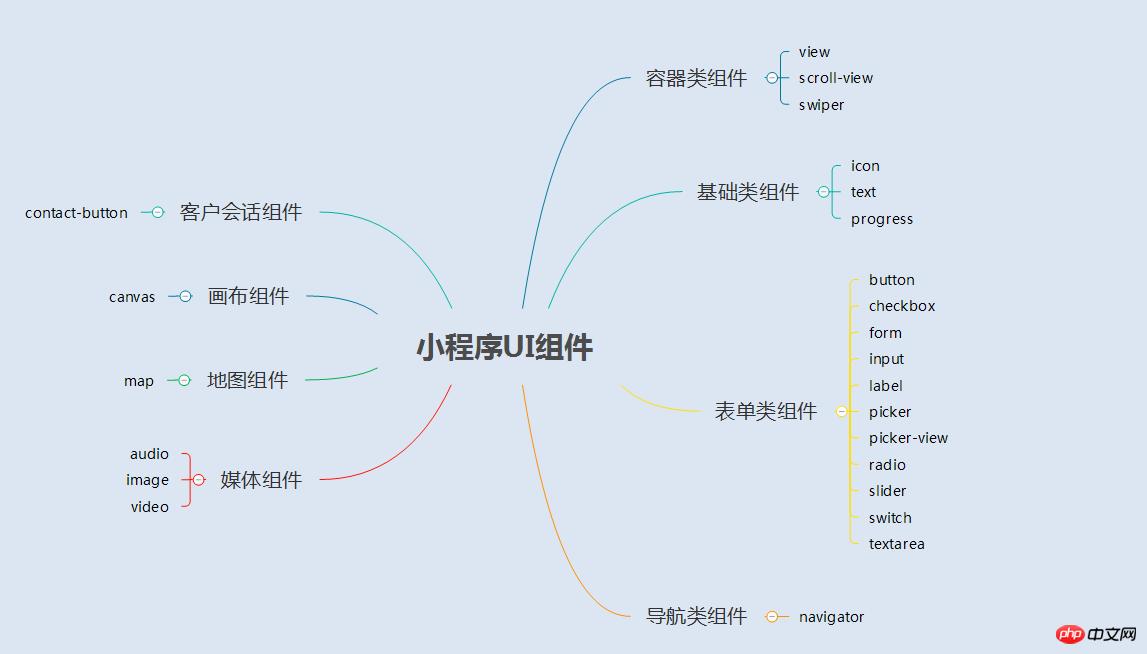
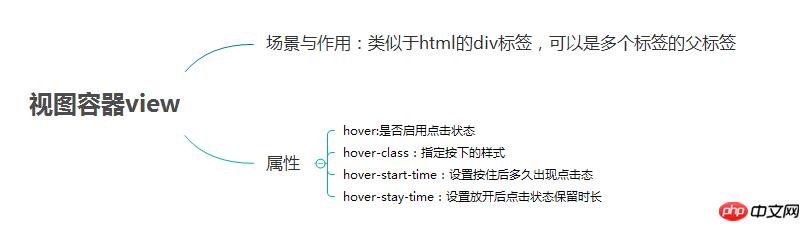
導(dǎo)讀微信小程序,簡稱小程序,英文名Mini Program,是一種不需要下載安裝即可使用的應(yīng)用,它實現(xiàn)了應(yīng)用“觸手可及”的夢想,用戶掃一掃或搜一下即可打開應(yīng)用。小程序是一種不用下載就能使用的應(yīng)用,也是一... 微信小程序,簡稱小程序,英文名Mini Program,是一種不需要下載安裝即可使用的應(yīng)用,它實現(xiàn)了應(yīng)用“觸手可及”的夢想,用戶掃一掃或搜一下即可打開應(yīng)用。小程序是一種不用下載就能使用的應(yīng)用,也是一項門檻非常高的創(chuàng)新,經(jīng)過將近兩年的發(fā)展,已經(jīng)構(gòu)造了新的小程序開發(fā)環(huán)境和開發(fā)者生態(tài)。 這篇文章主要介紹了微信小程序 UI與容器組件總結(jié)的相關(guān)資料,需要的朋友可以參考下微信小程序 UI與容器組件總結(jié) 1.總結(jié)與概述 2.容器組件 2.1 組件容器(view) 2.2 可滾動視圖容器(scroll-view) 2.3 滑塊視圖容器(swiper) 1.總結(jié)與概述 1.1 UI組件總結(jié)圖 1.2 概述 小程序的UI組件也就是定義用戶界面的一系列標(biāo)簽,類似于html標(biāo)簽。一個完整用戶響應(yīng)過程:事件觸發(fā)——>UI組件接收到事件——>觸發(fā)js函數(shù)響應(yīng)事件——>更新UI 2.容器組件 2.1 容器組件(view) (1)總結(jié)
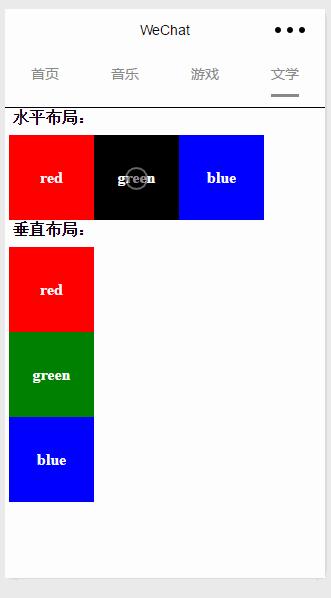
(2)例子 效果圖
page.wxml <view> <text class="row-view-title">水平布局:</text> <view class="flex-wrp-row"> <view class="flex-item-red" hover="true" hover-class="hover-style"><text class="color-text">red</text></view> <view class="flex-item-green" hover="true" hover-class="hover-style"><text class="color-text">green</text></view> <view class="flex-item-blue" hover="true" hover-class="hover-style"><text class="color-text">blue</text></view> </view> </view> <view> <text class="column-view-title">垂直布局:</text> <view class="flex-wrp-column" > <view class="flex-item-red" hover="true" hover-class="hover-style"><text class="color-text" >red</text></view> <view class="flex-item-green" hover="true" hover-class="hover-style"><text class="color-text">green</text></view> <view class="flex-item-blue" hover="true" hover-class="hover-style"><text class="color-text">blue</text></view> </view> </view> page.wxss .flex-item-red{
background-color: red;
height: 200rpx;
width: 200rpx;
text-align: center;
line-height: 200rpx;
}
.flex-item-green{
background-color: green;
height: 200rpx;
width: 200rpx;
text-align: center;
line-height: 200rpx
}
.flex-item-blue{
background-color: blue;
height: 200rpx;
width: 200rpx;
text-align: center;
line-height: 200rpx
}
.flex-wrp-row{
flex-direction: row;
display: flex;
margin-left: 10rpx;
margin-top: 20rpx;
}
.flex-wrp-column{
flex-direction: column;
display: flex;
margin-left: 10rpx;
margin-top: 20rpx;
}
.color-text{
color: snow;
font-family: 'Times New Roman', Times, serif;
font-weight: bold;
}
.hover-style{
background-color: black;
}
.row-view-title,.column-view-title{
margin-left: 20rpx;
font-family: 'Times New Roman', Times, serif;
font-weight: bold;
}
/*重要屬性:
display: flex; //與display:box;是類似,是flexbox的最新語法格式,有更好的適配效果
flex-direction: column; //表示子布局垂直布局
flex-direction: row; //表示子布局為水平布局
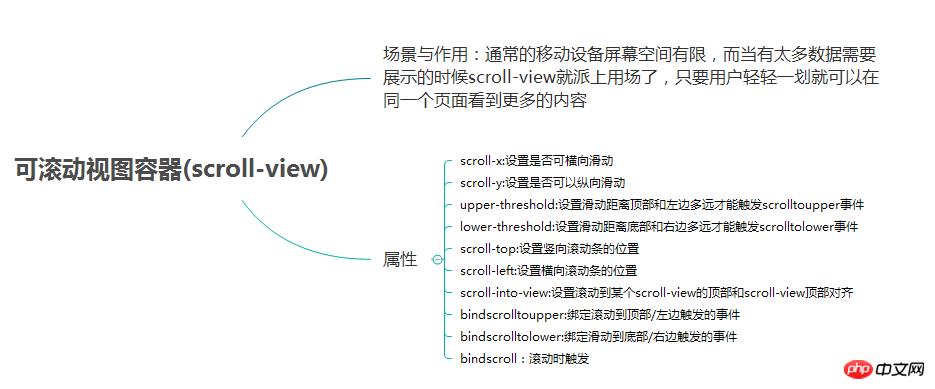
*/2.2 可滾動視圖容器(scroll-view) (1) 總結(jié)
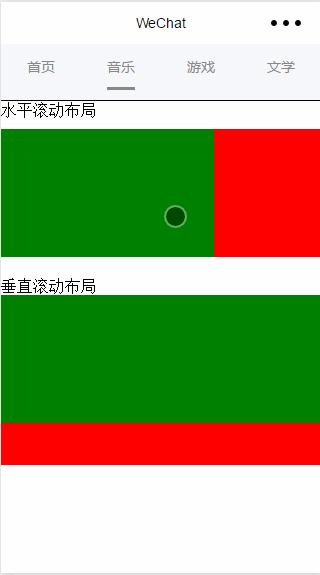
(2) 例子 效果圖:
page.wxml <view>
<text>水平滾動布局</text>
</view>
<view class="x-view">
<scroll-view class="scroll-view-x" scroll-x="true" bindscrolltoupper="scrollXToUpper" bindscrolltolower="scrollXToLower" bindscroll="scroll" scroll-left="0" scroll-into-view="{{green}}">
<view id="green" class="x_green"></view>
<view id="red" class="x_red"></view>
<view id="yellow" class="x_yellow"></view>
<view id="blue" class="x_blue"></view>
</scroll-view>
</view>
<view>
<text>垂直滾動布局</text>
</view>
<view class="y-view">
<scroll-view class="scroll-view-y" scroll-y="true" bindscrolltoupper="scrollYToUpper" bindscrolltolower="scrollYToLower" bindscroll="scroll" scroll-top="0" scroll-into-view="{{green}}">
<view id="green" class="y_green"></view>
<view id="red" class="y_red"></view>
<view id="yellow" class="y_yellow"></view>
<view id="blue" class="y_blue"></view>
</scroll-view>
</view>page.wxss .x_green{
background-color: green;
width: 500rpx;
height: 300rpx;
display: inline-flex;
}
.x_red{
background-color: red;
width: 500rpx;
height: 300rpx;
display: inline-flex;
}
.x_blue{
background-color: blue;
width: 500rpx;
height: 300rpx;
display: inline-flex;
}
.x_yellow{
background-color: yellow;
width: 500rpx;
height: 300rpx;
display: inline-flex;
}
.y_green{
background-color: green;
width: 100%;
height: 300rpx;
}
.y_red{
background-color: red;
width: 100%;
height: 300rpx;
}
.y_yellow{
background-color: yellow;
width: 100%;
height: 300rpx;
}
.y_blue{
background-color: blue;
width: 100%;
height: 300rpx;
}
.scroll-view-x{
display: flex;
white-space: nowrap;
width: 100%;
margin-bottom: 20px;
margin-top: 10px;
height: 300rpx;
}
.scroll-view-y{
height: 400rpx;
}
/*重要屬性:
white-space: nowrap;//設(shè)置內(nèi)部元素不換行顯示,與display: inline-flex;屬性聯(lián)合使用才會有水平布局的效果
*/page.js //index.js
//獲取應(yīng)用實例
var app = getApp()
//var color_index=['green','red','yellow','blue'];
Page({
data:{
toview:'red',
},
/*滑動到左邊觸發(fā)*/
scrollXToUpper:function(){
console.log('scrollXToUpper')
},
/*滑動到右邊觸發(fā) */
scrollXToLower:function(){
console.log('scrollXToLower')
},
/*滑動到頂部觸發(fā)*/
scrollYToUpper:function(){
console.log('scrollYToUpper')
},
/*滑動到左邊觸發(fā) */
scrollYToLower:function(){
console.log('scrollYToLower')
},
/*滑動觸發(fā) */
scroll:function(){
console.log("scroll")
},
onLoad: function () {
console.log('onLoad')
var that = this
},
})2.3 滑塊視圖容器(swiper) (1)總結(jié)
(2)例子 效果圖:
page.wxml <swiper data-current="0" current="0" bindchange="itemChangeFunc" circular="true" indicator-dots="{{indicatorDots}}"
autoplay="{{autoplay}}" interval="{{interval}}" duration="{{duration}}">
<block wx:for="{{imgUrls}}" wx:key="swiperkeys">
<swiper-item>
<image src="{{item}}" class="slide-image" width="355" height="150"/>
</swiper-item>
</block>
</swiper>page.js //game.js
Page({
data: {
imgUrls: [
'/image/wechat.png',
'http://img02.tooopen.com/images/20150928/tooopen_sy_143912755726.jpg',
'http://img06.tooopen.com/images/20160818/tooopen_sy_175866434296.jpg',
'http://img06.tooopen.com/images/20160818/tooopen_sy_175833047715.jpg'
],
indicatorDots: true,
autoplay: true,
interval: 3000,
duration: 1000,
current:1,
},
durationChange: function(e) {
this.setData({
duration: e.detail.value
})
},
durationChange: function(e) {
this.setData({
duration: e.detail.value
})
},
itemChangeFunc:function(e){
// console.log(e.target.dataset.current)
console.log(e.detail)
}
})以上就是本文的全部內(nèi)容,希望對大家的學(xué)習(xí)有所幫助,更多相關(guān)內(nèi)容請關(guān)注PHP中文網(wǎng)! 相關(guān)推薦: 以上就是微信小程序中UI與容器組件的介紹的詳細(xì)內(nèi)容,更多請關(guān)注php中文網(wǎng)其它相關(guān)文章! 小程序是一種不需要下載安裝即可使用的應(yīng)用,它實現(xiàn)了應(yīng)用“觸手可及”的夢想,用戶掃一掃或者搜一下即可打開應(yīng)用。 |
溫馨提示:喜歡本站的話,請收藏一下本站!
本站發(fā)布的Win7純凈版系統(tǒng)、Win10純凈版和XP純凈版系統(tǒng)僅為個人學(xué)習(xí)測試使用,請在下載后24小時內(nèi)刪除,不得用于任何商業(yè)用途,否則后果自負(fù),請支持購買微軟正版軟件!
本站所有資源全部來自于網(wǎng)絡(luò)資源,如侵犯到您的權(quán)益,請及時通知我們(peng896066052@126.com),我們會及時處理.
Copyright © 2018-2020 雨林木風(fēng)下載站